WordPress to Webflow migration: the complete guide

Most teams start a migration by asking if their exact WordPress site can be rebuilt in Webflow. It's the wrong first question. The old structure gets treated as something to preserve, when the reason to move is that it's what holds you back.
A WordPress-to-Webflow migration is a whole process from auditing to launching, and not a one-click export. And it only pays off if it changes who owns the site afterward.
What migrates cleanly from WordPress to Webflow
In a WordPress to Webflow migration, the straightforward stuff migrates cleanly: pages, posts, and media files. The split below decides how much work is actually in front of you.
A site that's mostly static pages and a blog is a light lift, but a plugin-heavy site is a different project. The scenario that catches teams out sits in that right-hand column.
A blog export lands cleanly in a Webflow rich-text field, the import reports success, and everyone moves on. Then someone opens a published post and finds raw shortcode text where an accordion or a form used to be. The content imported fine, but the plugin that powered it didn't come along.
Not sure which of your plugins and shortcodes will actually survive the move? Our Webflow migration service can show you what carries over and what needs rebuilding beforehand.
Map your content types to Webflow Collections before you build
A Collection is Webflow's CMS structure for a content type: a Posts Collection, for example, holds every blog post as an entry, each with the same set of fields (body, author, published date, and so on).
That means WordPress post types and custom content have to be modeled into a new schema rather than copied across. Decide that schema before any visual build, or you'll be re-cutting fields after import.
In WordPress you think in post types and custom fields bolted on as you go. In Webflow you decide the shape of each content type first, and each type gets its own Collection with its own fields.
Custom fields and taxonomies become Collection fields and reference fields, and you want those decided upfront rather than discovered mid-build.
Here's what a clean mapping looks like:
- Blog posts: A Posts collection with fields for body, author, and published date
- Case studies: Their own Collection with client and industry fields, kept separate from posts
- Team bios: A People collection with role and photo fields, given the same care as the rest
The failure mode is the opposite of that: the build starts before the schema is settled, everything gets poured into one generic Collection, and then the fields stop fitting each content type. Now you're splitting a Collection apart with content already in it, which is slow, manual work.
One honest trade-off while you plan this. Webflow's Collection structure is cleaner to maintain than a pile of WordPress custom fields, and it's also less freely extensible. If your WordPress site leans on unusual custom-field arrangements, some of that flexibility won't have a one-to-one home.
The migration workflow from audit to launch
A WordPress to Webflow migration runs in five phases, and the order matters more than the tooling. The five-phase shape is consistent across the practitioner guides and matches Webflow's own sequence. Here's the workflow in order.
1. Audit and prune before you export
Pull traffic and backlink data from Google Analytics and Google Search Console before you decide what moves. A page with no organic traffic and no backlinks for twelve months or more is usually something to retire, not migrate. Migrating dead pages just rebuilds clutter in a cleaner tool.
2. Export and prepare your content
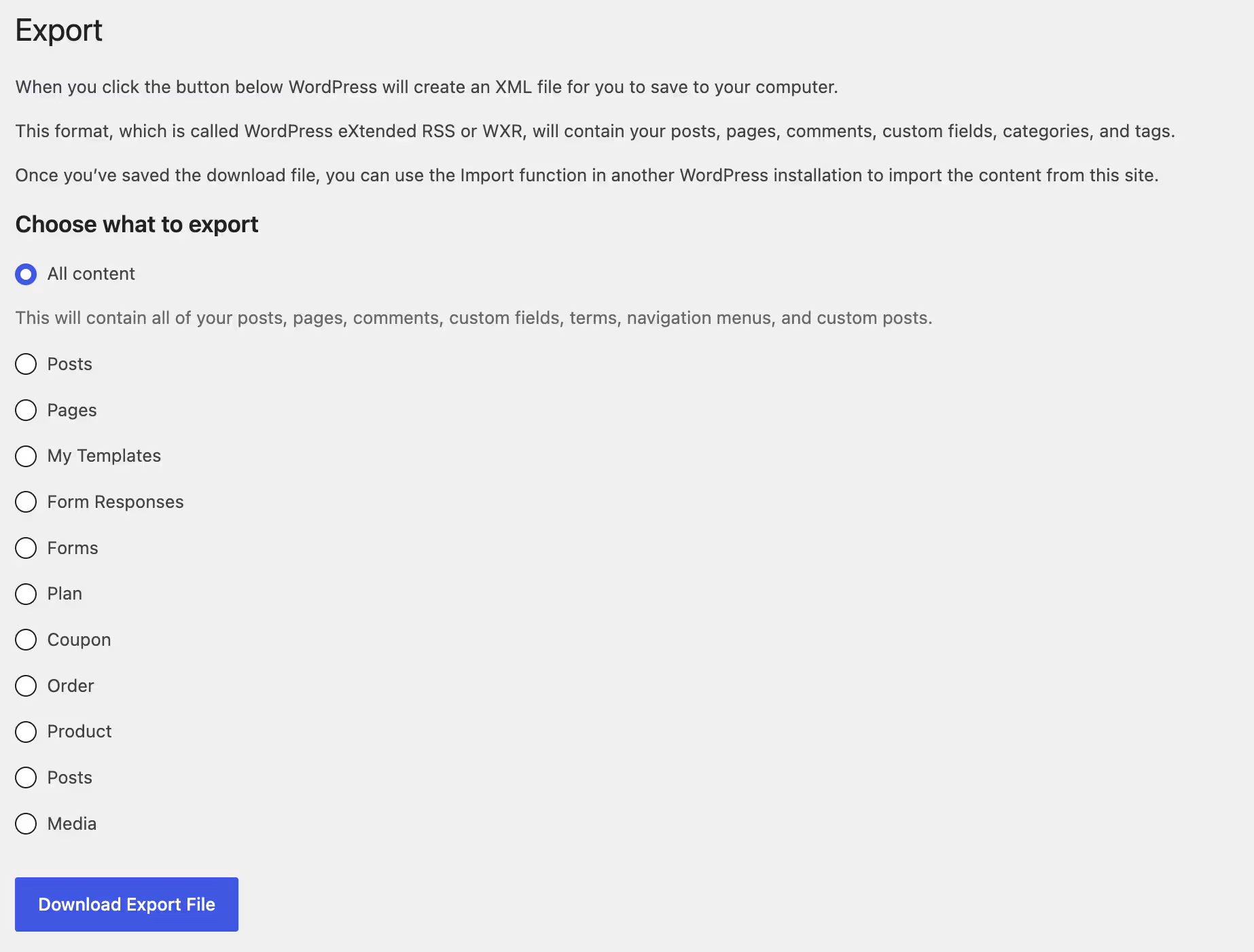
Use WordPress's native XML export, or WP All Export to pull posts, pages, and custom fields to CSV. This is the point to clean shortcode fragments out of the body content, before they ride into Webflow as raw text. Preparation here saves you QA pain later.
3. Rebuild structure and functionality in Webflow
This is where the actual Webflow development happens. Build against the Collection schema you settled in the mapping phase. This is where plugin logic gets replaced. A form plugin becomes a Webflow-native form or a third-party integration.
Conditional behavior gets rebuilt with Webflow features, and anything with no native equivalent gets a deliberate call to rebuild or drop.
4. Test and QA the import
Sample-check imported items for formatting, links, images, and metadata. You're looking for the shortcode leftovers, the broken image references, and the metadata that didn't map.
5. Launch
Run a final redirect check, point DNS, and go live. The redirects cause the most problems post-launch, which is why they get their own section next.
Will you lose your SEO when you switch?
Not if you map every redirect before launch. Permalink structures rarely carry over cleanly between WordPress and Webflow, which is why redirect mapping is a launch requirement.
A WordPress site running date-based permalinks (year, month, slug) gets rebuilt in Webflow with clean, flat slugs, and none of the old paths carry over automatically. If nobody maps the old categories and dates to the new paths until late in the launch, that's where pages break and rankings drop.
Your content inventory should already carry the URLs, titles, and meta descriptions for every page before import. So, preserve the titles and meta descriptions as you map content into Collections.
Start by exporting the full URL list from the live WordPress site, then map every old path to its new destination.
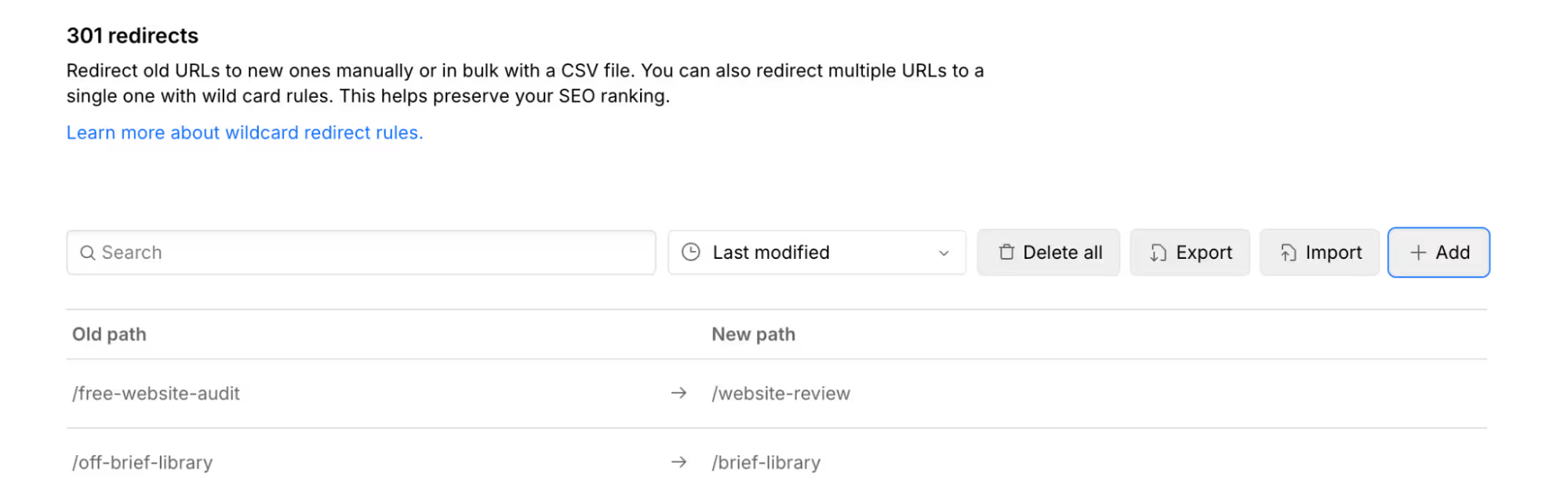
From there, set a 301 redirect in Webflow for each mapping:
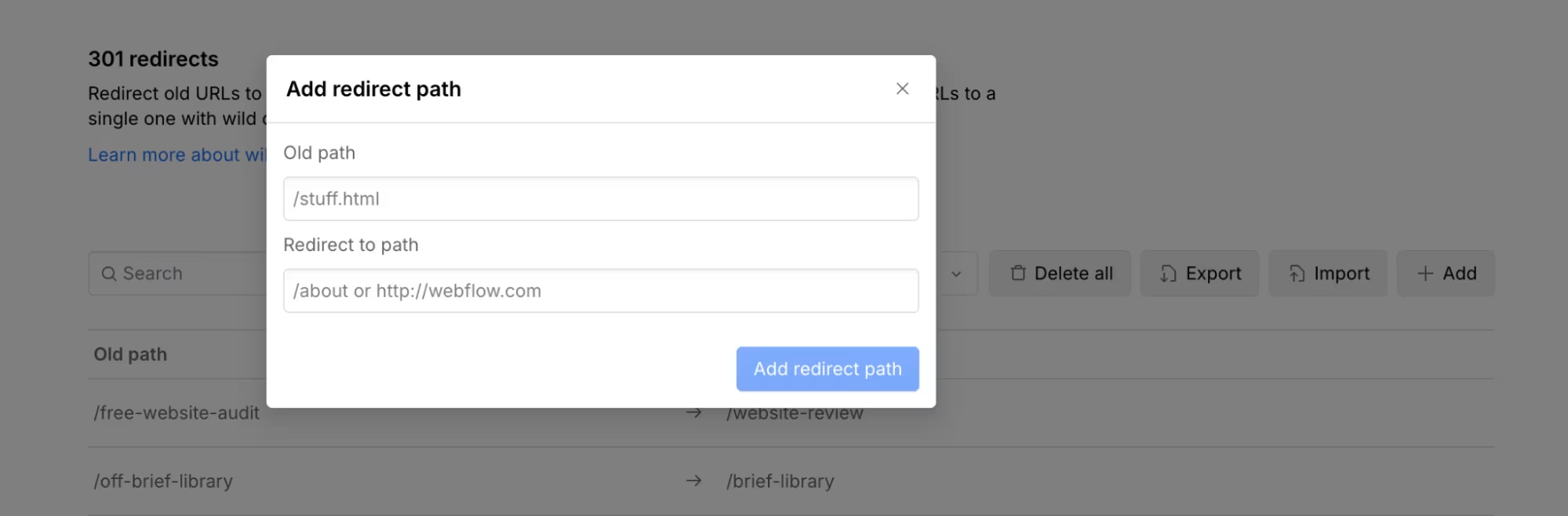
Once live, verify that the old URLs resolve to the right pages.
Final thoughts
A successful WordPress to Webflow migration ends with marketing running the site directly, not just a faster, better-looking one.
You leave WordPress for control: changing a headline, publishing a post, or fixing a typo without a ticket. That takes planning the Collections and redirects, and setting up edit permissions properly. Port the old structure page for page instead, and the same dependency comes with you, just better dressed.
The quickest way to see which version you're set up for is an outside read of the site you have now. Request a website review and we'll show you where your current WordPress site is holding marketing back, and what it would take to hand you the keys in Webflow.
Frequently Asked Questions
Can I just export all my posts and dump them straight into Webflow?
You can export the posts, but importing them with no structure in place is where it breaks. Webflow uses Collections, so posts have to map into a schema first, and any shortcode fragments in the body are imported as raw text. Plan the Collection, then import and QA a sample before you trust the batch.
Will I lose my SEO rankings when I move to Webflow?
Not if you 301-map every old URL to its new path and preserve titles and meta descriptions. Rankings dip when permalink structures change and redirects get mapped late in the launch. Export the full URL list before you touch any slugs.
Can Webflow handle custom post types like WordPress?
Yes, through Collections. Each content type becomes its own Collection with its own fields, rather than a WordPress custom post type. Give each type its own Collection instead of forcing everything into one generic bucket.
How long does a WordPress to Webflow migration take?
It depends on content volume and how much plugin functionality needs rebuilding. A blog-only site moves faster than a plugin-heavy one. Rather than quote a number, scope it from the audit: the page count you're migrating, the Collections you need to model, and the integrations you have to replace.


![Portrait of a Kevin D Chen [Dark]](https://cdn.prod.website-files.com/6963b46b73d13c416619d604/696770db31b454394fd4709a_43e4f0a4b187c1f51dd5024dd9980a60_kevin-photo.avif)