The website agency handover checklist for non-technical teams


A complete web design agency handover checklist covers five things: account ownership, tested access, working forms and tracking, source files in writing, and agreed support terms. Your team confirms every one of them yourselves, not the agency, before you release final payment.
Handover is when most non-technical teams find out what they forgot to ask for, and by then the invoice is paid and the agency's already moved on. Use the checklist below to test each item before the project closes.
The website agency handover checklist
Sign-off is the last moment your agency has a contractual reason to fix something quickly. Test the important parts of the handover yourself before you release final payment, rather than discovering problems in the weeks after launch.
Use this as your final sign-off checklist. Assign someone on your team to confirm each check and record any evidence you need to keep.
Access and credentials
When it comes to access and credentials, what matters is whether your account can see billing, ownership, and transfer settings if the agency relationship ends.
Accounts your team should own
Every account in this list should be registered to an email address your organisation controls, with someone on your team holding the highest available role.
- CMS or site builder Workspace
- Hosting account, including whoever the card on file belongs to
- Domain registrar
- DNS, which may sit apart from the registrar
- Google Analytics property
- Google Search Console property
- Every third-party integration, such as CRM, email platform, booking tool, chat widget, payment processor
An account created under yourbrand@agency.com belongs to the agency in every way that matters. Password resets, recovery codes, and security notifications go to their inbox. You have a login they can close, which is a different thing from an asset you hold.
How to check account ownership
Open each account in the list from your own browser and follow these steps to check for account ownership:
- Log in using your own email, not a shared one and not one the agency created for you
- Find the billing or plan page. Confirm you can see the payment method on file and the contact address renewal notices go to
- Find the members or permissions page. Confirm your role can add and remove users, including the agency
- Trigger a password reset and confirm the email reaches your inbox rather than someone else's
Domain and hosting
Two things on your site can't be rebuilt if you lose them: the domain and the hosting account.
Check who owns the domain
Start with the registrar. Log in and check the registrant contact details. If the agency is listed as the registrant, the domain is still under its control, even if your company name appears elsewhere on the account.
Then check where renewal notices are sent and whether auto-renew is switched on. These settings often live on different screens, so checking the registrant details alone doesn't confirm that your team controls the domain.
If the agency registered the domain on your behalf, ask for an authorisation-code transfer into your own registrar account. The domain should sit in an account your team controls, with the agency given access only when it needs to make technical changes.
Run an NS lookup on your domain (a free tool like MXToolbox's DNS Lookup will do this) to see which nameservers are authoritative.
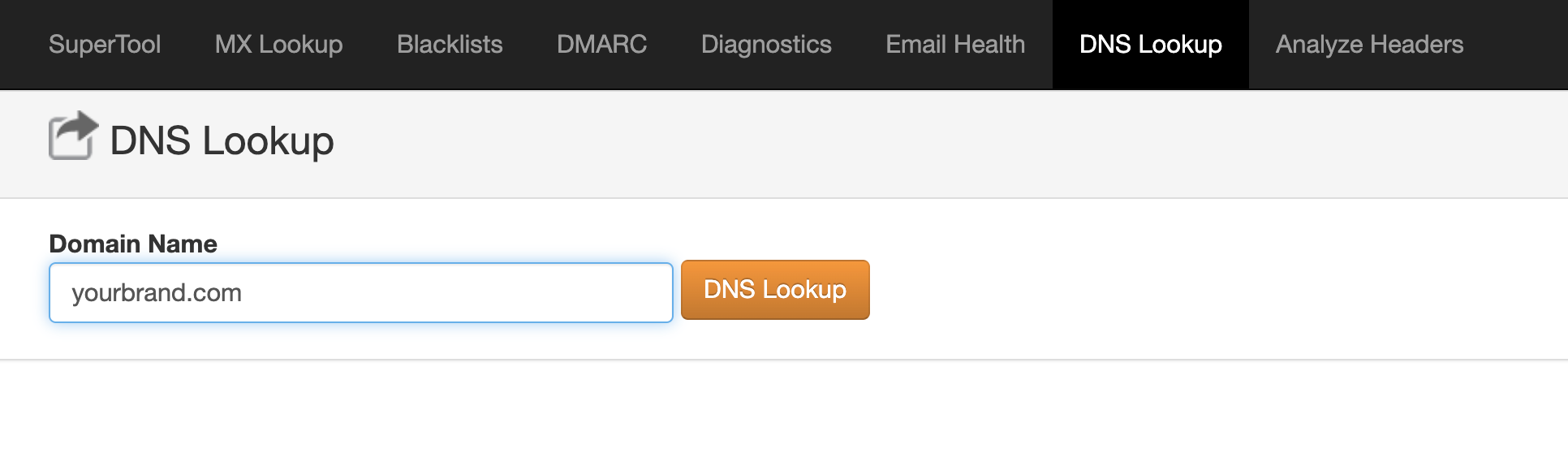
That tells you where DNS actually lives, not just where the domain is registered. Log into that account and confirm your team, not the agency, can edit the records.
Check hosting, billing, and Webflow transfers
Start with three questions: who pays for hosting, who has admin access, and what happens to the site if the agency relationship ends tomorrow? Your team should be able to answer all three and access the relevant accounts without going through the agency.
If you're using Webflow, the site should be transferred to a Workspace your organisation owns. Your team then controls the site, while the agency can remain an invited collaborator. That’s how any Webflow development engagement should be set up from the start.
Some Workspace combinations require the site to be downgraded to a Starter Site plan before transfer. This can cause downtime, and the new owner will need to reconnect the custom domain and republish the site.
Webflow's transfer guide explains what moves with the site and what you'll need to reconnect. Here's what transfers with the site:
- Pages and page settings
- CMS content and collections
- Custom code
- Custom fonts
- Existing form submissions
- 301 redirects and connected custom domains on eligible transfers
Here's what you need to check after the move:
- Form notification settings
- Billing and payment method
- Account-specific information
- Comments
- Some app authorisations
- reCAPTCHA keys
If you're planning a WordPress to Webflow migration the order you run these checks in matters more than usual. A redirect map is only useful if the old URLs it's built from still exist, and CMS training is wasted if the content structure changes again right after launch.
CMS training
Ask for the training session to be recorded, but make sure your team does the work. A walkthrough where the agency performs each task while you watch only proves that the agency can use the CMS.
During the session, work through these tasks on the live site:
- Edit copy on an existing page and publish it, including any confirmation step the platform requires
- Create and publish a new blog post or collection item
- Add or reorder a navigation link in line with website navigation best practices
- Upload and place an image at the dimensions the design expects
The recording gives your team a reference after the handover. The person trained at launch may not be the person editing the site later, and asking the agency to repeat training after the support window can become a separate paid task.
You should also know what you can’t safely change yourself. Ask which fields and areas are developer-controlled, such as layout components, template pages, custom code embeds, and component instances, and get that list in writing.
The handover should leave you with a simple one-page reference for each template: what your team can edit safely and what needs a developer. It doesn’t need to be a manual. It just needs to make the boundaries clear.
SEO and redirects
Get seo web design right before launch, not after. Search Console may eventually show broken redirects, but by then the site may already have lost traffic. Before launch, confirm:
- Analytics is receiving live data on a property your team administers
- Search Console is verified for the new site and the old one, where the two differ
- The sitemap is submitted
- robots.txt isn’t blocking anything it shouldn't
- Canonical tags point where you expect them to
- A 301 redirect exists for every URL that changed
Ask for the redirect map in writing. It should list every old URL and the new URL it points to. This gives your team something to check against after launch.
Then test a sample of important old URLs yourself. Check high-traffic pages, key blog posts, and other URLs that matter to the business, and make sure each one lands on the right new page.
Finally, monitor Google Search Console after launch. A site can look fine while old service pages and articles quietly return 404 errors.
Forms, tracking, and integrations
Submit every form on the site yourself, then go and find where the message landed. The confirmation message on screen tells you the form submitted. It tells you nothing about where it went.
Use a traceable subject line or a distinctive name, so you can search for it. Then check three places: the destination inbox, the CRM record it should have created, and any automation that was supposed to fire off the back of it.
Confirm the notification recipient is a monitored address your organisation controls, not an individual's personal inbox and not an address at the agency.
This breaks after a Webflow Workspace transfer for a specific and documented reason. Form notification settings, some app authorisations, and reCAPTCHA keys don’t carry across.
Tracking needs the same treatment. Open GA4's realtime view or your platform's debug view, submit a form, and watch the conversion event arrive. Confirming that a tracking script exists in the page source is a different check entirely, and it passes in plenty of cases where no event is ever recorded.
After any transfer, re-authorise:
- CRM connections
- Email platform
- Booking tools
- Chat widget
- Payment processor
A contact form pointing into an inbox that’s about to be closed is a live lead-loss problem. Routing is only half of it. The other half is whether anyone completes the form at all, which is where most contact page mistakes live.
If you're not sure your site is actually any good at turning visitors into buyers, that's a separate check worth doing. Our free website review takes an honest look at that.
Performance and legal
These are two areas where the agency can build the site correctly, but your team still needs to check the result and understand what it’s responsible for.
Test your site speed yourself
Run PageSpeed Insights on your key pages on both mobile and desktop, and save the results as your baseline. Mobile and desktop can score differently, so checking only one doesn't give you the full picture.
Google measures speed against three Core Web Vitals thresholds, and your PageSpeed Insights report will score you against all three.
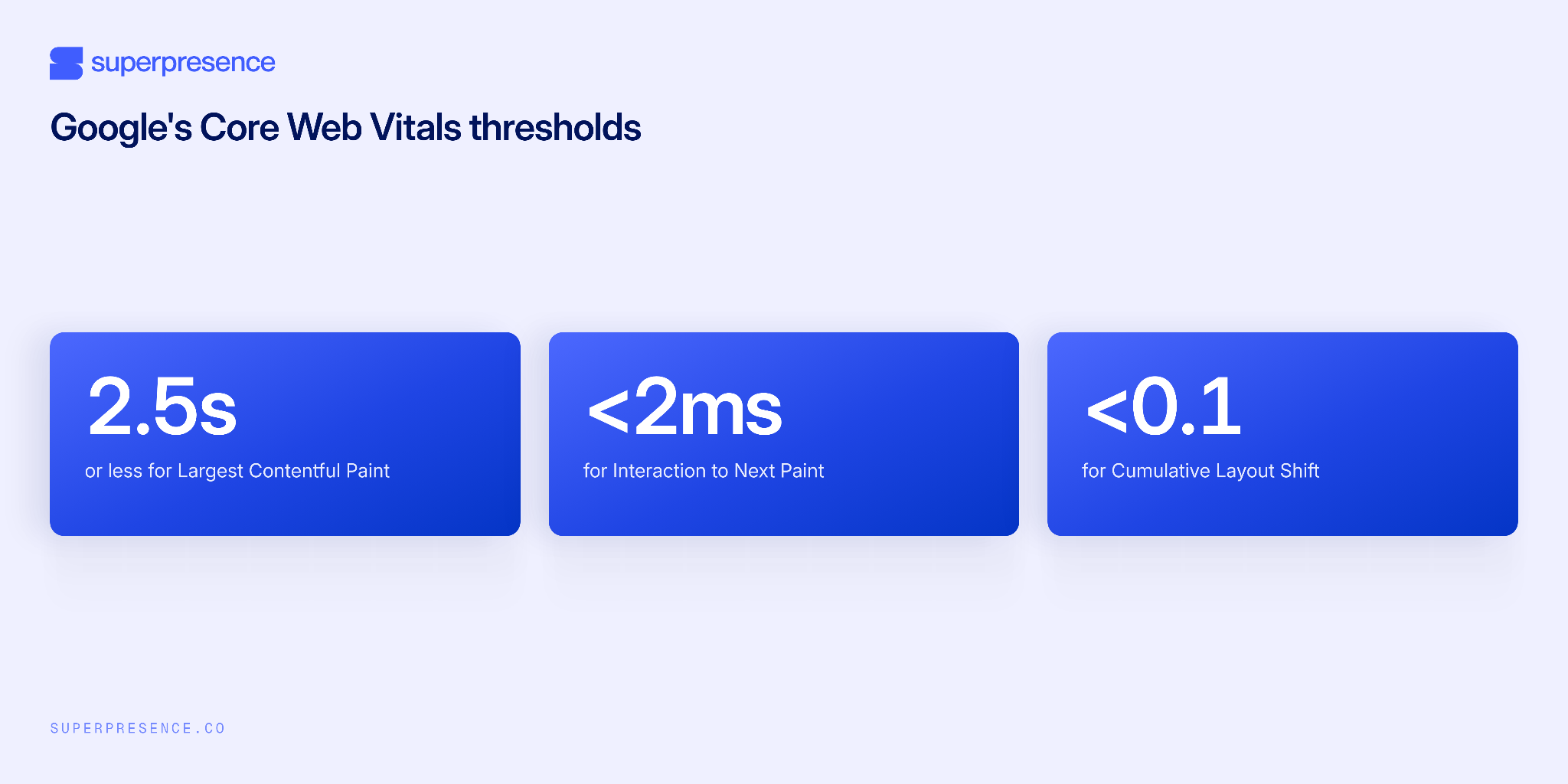
In simple terms, these measure how quickly the main content appears, how quickly the page responds to interaction, and whether the layout moves around while it loads.
Check the live site on real devices as well, not just a browser's device simulator. Save the reports so you have a baseline for future performance checks with the same agency or another provider.
Know your legal responsibilities
Your agency can install the cookie banner, set up consent controls, and publish the privacy policy. Your team is still responsible for making sure those things accurately reflect how your organisation collects and uses data.
At handover, check that these three things exist and are up to date:
- Cookie consent mechanism that reflects the site's actual tracking and cookies
- Privacy policy that accurately describes what data you collect and why
- Terms of service where your site or business requires them
The agency can set up the technical parts, but it can't know all the facts about your organisation, its data practices, or the legal basis you rely on. Those details need to come from your team and, where appropriate, your legal adviser.
Source files and documentation
Ask for the source files, not just exports. The source should include the component library, linked assets, and font names and licence details. Open the file in your own account, edit a text layer, and confirm the file sits in a team or Workspace your organisation owns.
Also ask for documentation covering:
- Custom functionality and how it works
- Third-party integrations and which accounts they use
- Software and font licences and who owns them
- Deployment or publishing steps for anything that isn't one-click
Agree the source-file ownership and delivery format in the contract before the project starts. Don't leave it until final payment.
An organised file is a design system you can hand to a new team, and a tidy-looking one is a different thing. Components should be organised, styles defined, and assets linked rather than flattened. A file you can access but can't work with isn't much of a handover.
Own the accounts, not just the login
A website handover checklist isn't only about who can log in. It means owning every account, testing access and forms yourself, holding the source files in writing, and agreeing support terms before you release final payment.
Test every item on this checklist yourself, and get anything still outstanding agreed in writing before you sign off.
If you're starting a new build, the easiest time to agree to these terms is before the work begins. Get in touch to tell us what you're building, and we'll send over the handover terms we work to, including what the client owns and when it gets handed over.
FAQs
Who actually owns our domain name?
The registrant listed in the registrar account controls the domain. Log into the registrar and check the registrant details, renewal email, and auto-renewal settings. If the agency is listed as the registrant, request a transfer into an account your organisation controls before sign-off.
We have a login that works. Isn't that enough?
Not necessarily. Your team should be able to access billing, change the payment method, manage members and permissions, and transfer or delete the asset. An editor login can handle day-to-day work without giving you any of that control.
What happens to our website if we stop working with the agency?
If your organisation owns the accounts and the site sits in your own Workspace, the agency's access can be removed and your team can continue managing the site. If key accounts or hosting are still controlled by the agency, resolve that before the relationship ends.
Do we really need to test every old URL after a redesign?
No. Test the important ones, including high-traffic pages, key blog posts, and URLs used in printed or offline materials. Ask for the complete redirect map and monitor Search Console for 404 errors after launch.
How do we know our form submissions are going to the right place?
Submit each form yourself and check the destination inbox, CRM, and any connected automation. Repeat the test after a hosting or Workspace transfer because notification settings and some integrations may need to be reconnected.


![Portrait of a Kevin D Chen [Dark]](https://cdn.prod.website-files.com/6963b46b73d13c416619d604/696770db31b454394fd4709a_43e4f0a4b187c1f51dd5024dd9980a60_kevin-photo.avif)